Renewals
The Renewals page is your main dashboard for managing IP matters. It lists all active matters in a table with filtering, search, and quick actions for renewing, abandoning, and sending reminders.
Page overview
The Renewals page shows a data table of matters with key information at a glance:
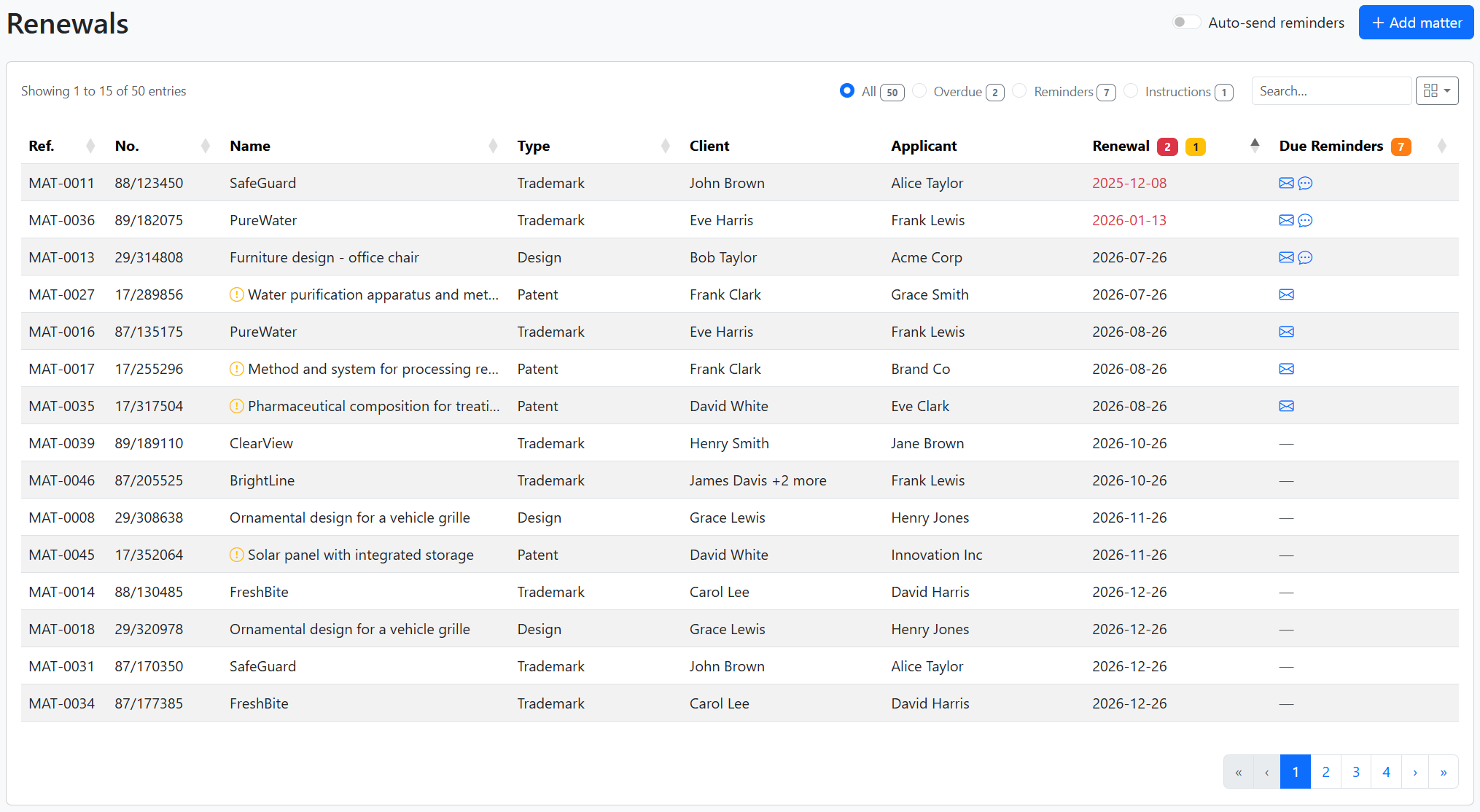
The top bar includes:
- Auto-send reminders – Toggle for automatic reminder sending (see Auto-send reminders below)
- Add matter – Opens a form to create a new matter
- Filter radios – All, Overdue, Reminders, Instructions (each with a count badge)
- Search – Search by matter name, application number, client, applicant, or type
- Column visibility – Show or hide columns
Filtering
Use the filter bar to focus on specific subsets of matters:

| Filter | Shows |
|---|---|
| All | Every active matter |
| Overdue | Matters whose next renewal date has passed |
| Reminders | Matters with due reminders (email or SMS scheduled to send) |
| Instructions | Matters with pending renew or abandon instructions from the client |
The badge next to each option shows how many matters match. Click a filter to update the table and update the URL so you can bookmark or share the view.
Column visibility
Click the columns icon (grid) next to the search box to show or hide table columns:
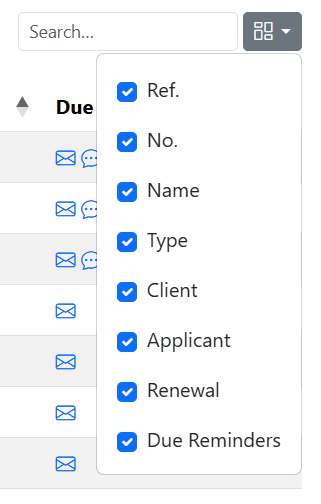
Uncheck a column to hide it. All columns are shown by default. Use this to simplify the view when you need fewer details.
Table columns
| Column | Description |
|---|---|
| Ref. | Matter reference number (your internal ID). Click to open the matter. |
| No. | Application or registration number. Click to open the matter. |
| Name | Matter title (e.g. trademark or patent name). A warning icon appears if professional or official fees are not set for the reminder. |
| Type | Matter type (e.g. Trademark, Patent, Design). |
| Client | Client (owner) who receives renewal reminders. |
| Applicant | Applicant on the IP right. |
| Renewal | Next renewal date. Shown in red if overdue, or orange if due within the configured urgent period (default 7 days). The header may show badges for overdue count, due-soon count, abandon instructions, and renew instructions. |
| Due Reminders | Scheduled reminders due to send. Email and SMS icons appear when a reminder is due; — when none are due yet. |
Click column headers to sort. The Renewal column can be sorted by date or by whether a due reminder exists.
Auto-send reminders
When Auto-send reminders is on, due reminders are sent automatically during work hours (weekdays from 9am in your organisation timezone).
When you turn it on, a confirmation dialog appears:
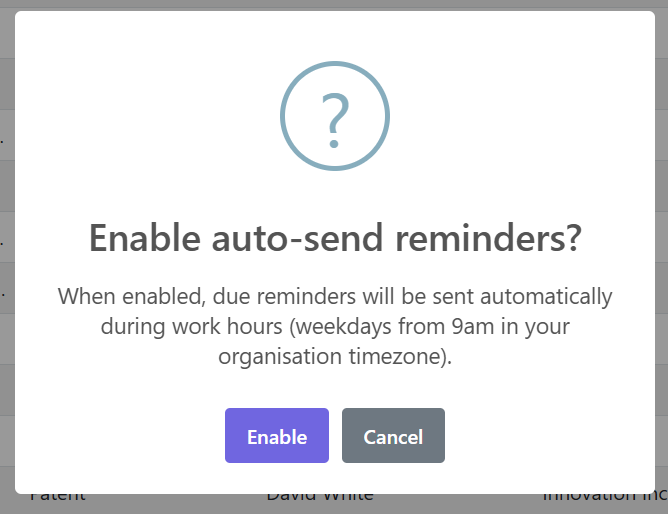
The toggle applies to your organisation. You can enable or disable auto-send per matter type in Settings → Preferences.
Add matter
Click + Add matter to create a new matter from the Renewals page:
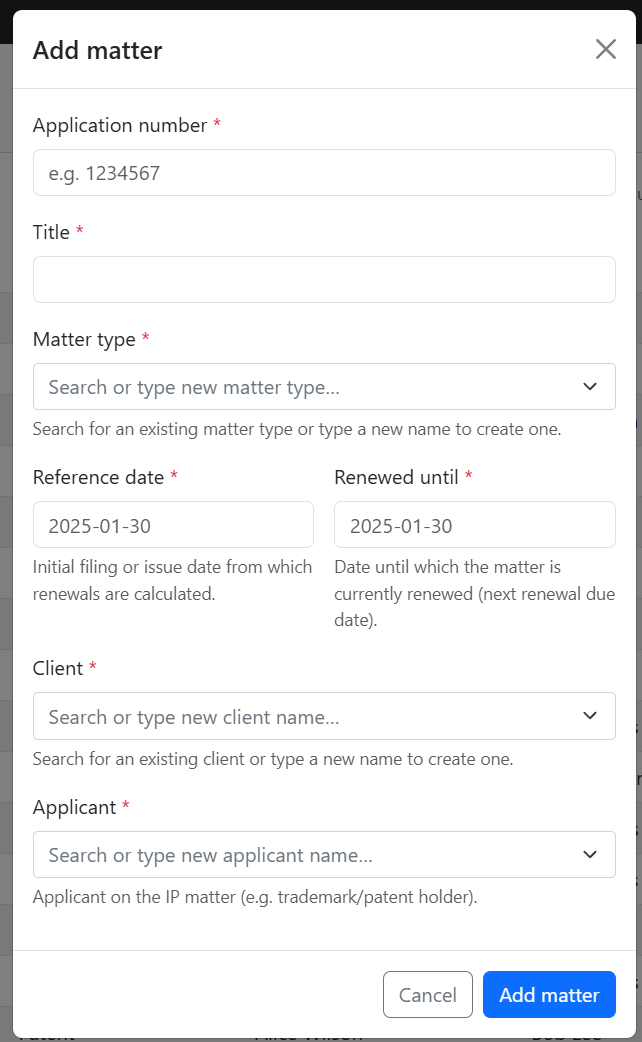
All fields are required:
- Application number – Official application or registration number
- Title – Matter name (e.g. trademark or patent title)
- Matter type – Search for an existing matter type or type a new name to create one
- Reference date – Filing or issue date from which renewals are calculated
- Renewed until – Date until which the matter is renewed (next renewal due date)
- Client – Search for an existing contact or type a new name
- Applicant – Applicant on the IP right (trademark/patent holder)
After saving, the matter appears in the table and on the matter show page.
Recording a renewal
When a client instructs you to renew, use the Renew button in the Renewal column.
Renew modal
The renew modal lets you choose the renewal year, set the date, add notes, and attach PDF receipts:
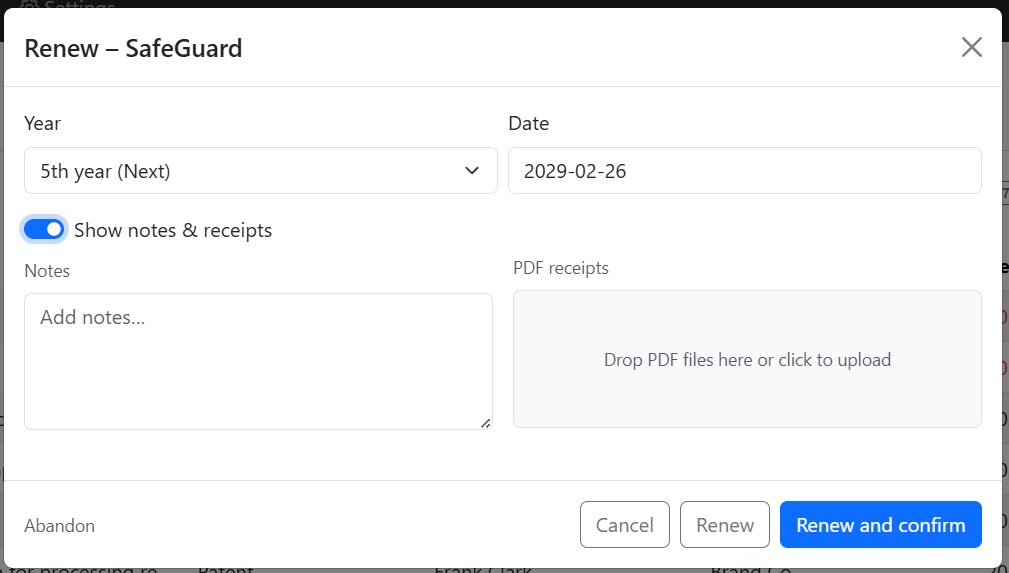
- Year – Select the renewal period from the matter type's schedule (e.g. 5th year)
- Date – Effective date of the renewal
- Show notes & receipts – Expand to add notes and upload PDF receipts
- Renew – Save without sending a confirmation email
- Renew and confirm – Save and proceed to send a confirmation email to the client
Email confirmation
If you click Renew and confirm, a second step shows the confirmation email:
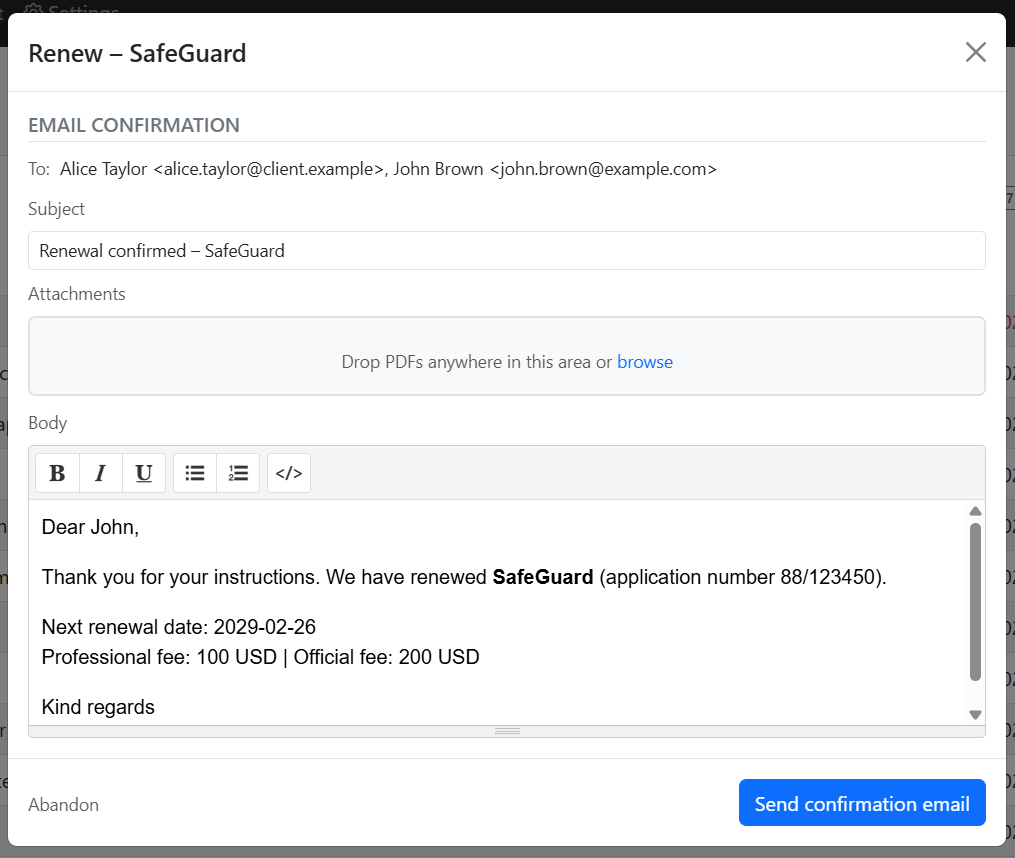
You can edit the subject, body, and attachments before clicking Send confirmation email. The body is pre-filled with matter details, fees, and the next renewal date. Recipients include the client and applicant by default.
Abandoning a matter
Use Abandon in the Renewal column when the client instructs you not to renew. The abandon modal lets you confirm the action and optionally send a do-not-renew confirmation email to the client:
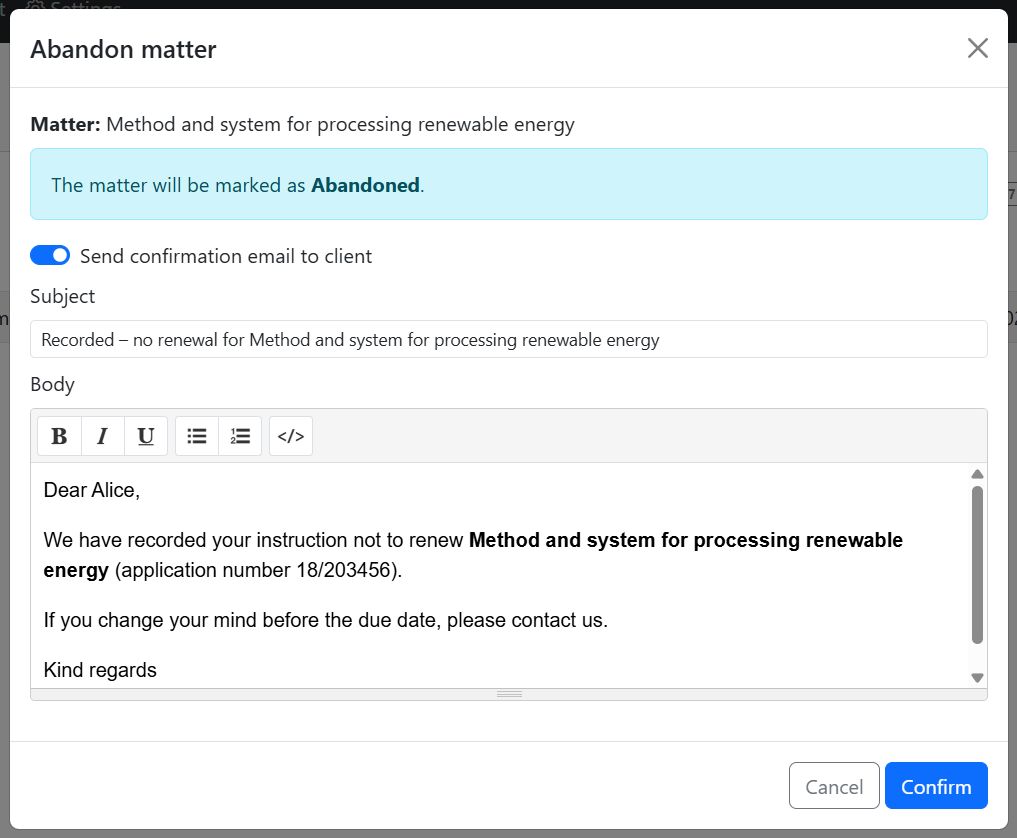
- Matter – Shows which matter you are abandoning
- Send confirmation email to client – When on, a pre-filled email is sent to the client
- Subject – Editable (default: e.g. "Recorded - no renewal for [matter name]")
- Body – Editable template with matter name and application number
Click Confirm to mark the matter as Abandoned (and send the email if enabled), or Cancel to close without changes.
Clients can also confirm abandonment via the link in reminder emails without logging in.
Sending reminders
When a reminder is due (shown in the Due Reminders column), click the email or SMS icon to open the send reminder modal:
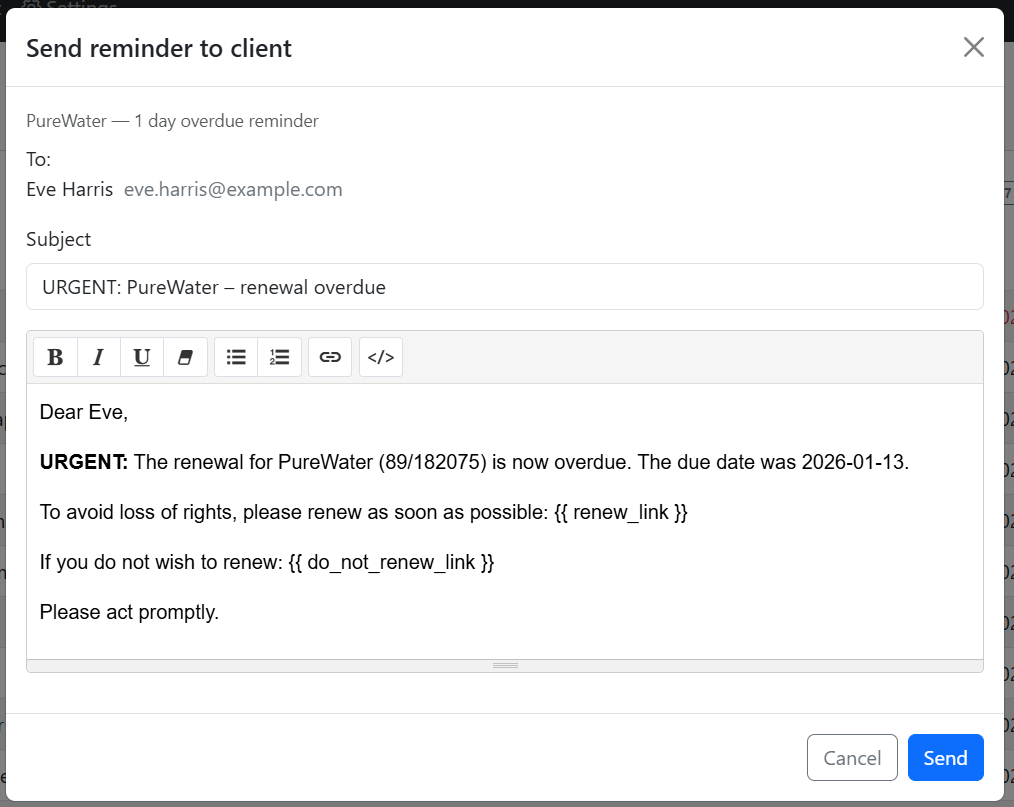
The email or SMS is pre-filled from the reminder template. The body must include both placeholders:
{{ renew_link }}– Link for the client to renew{{ do_not_renew_link }}– Link for the client to abandon
If either is missing, you’ll see an error:
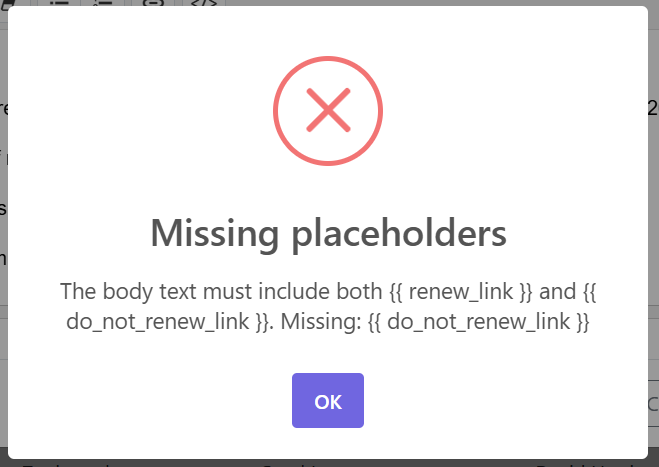
Fix the template in Matter types → Reminder schedule and try again. Review the reminder before sending and click Send when ready.
Search
Use the Search box to find matters by:
- Matter name
- Application number
- Reference number
- Client or applicant name
- Matter type
Search applies to the current filter. Multiple words are matched as separate terms (all must match).
Related pages
- Matters – View and edit a matter in full
- Matter types – Configure renewal schedules and reminder templates
- Contacts – Manage clients and applicants
- Reminders – How reminders work
- Import – Bulk import matters from CSV
- Settings → Preferences – Auto-send and urgent-day settings
- Errors – Failed reminder deliveries