Matters
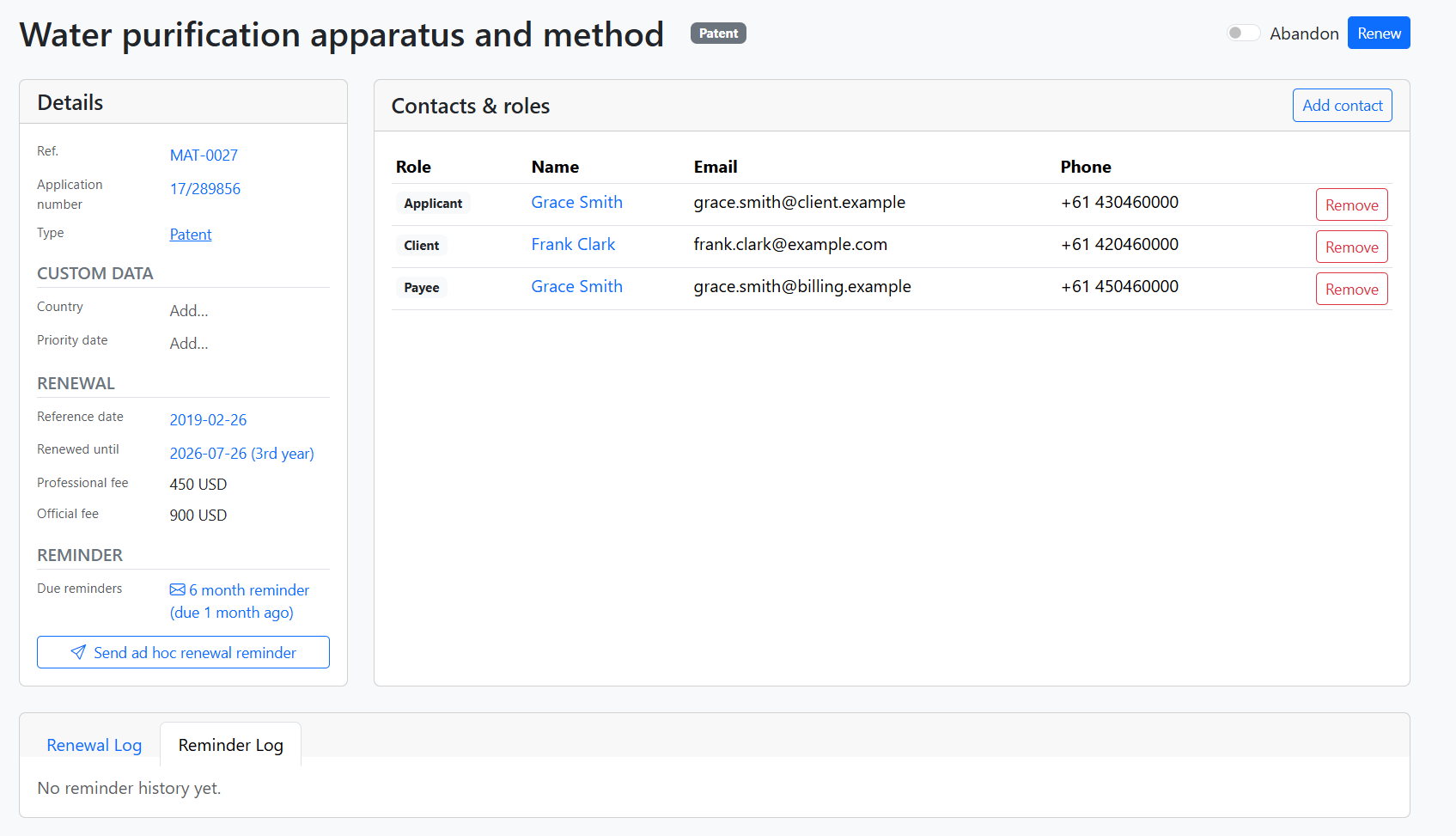
Matters represent individual IP applications (e.g. a trademark or patent). Open a matter from the Renewals table by clicking the matter name, reference number, or application number. The matter page shows details, contacts, renewal history, and reminder history.
Header
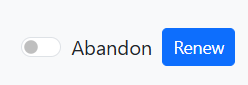
At the top of the page:
- Matter name – Click to edit inline. Shows with strikethrough when abandoned.
- Matter type badge – Links to the type's renewal schedule.
- Abandon – Toggle to mark the matter as abandoned or reactivate it. See Abandoning.
- Renew – Opens the renewal modal to record a renewal. Hidden when the matter is abandoned.
Details card
The left sidebar shows matter details (Ref., Application number, Type, Custom data, Renewal, Reminder). Many fields are clickable – click to open an edit modal and save inline. The overview above shows the full layout; below are key subsections.
Standard fields
| Field | Description |
|---|---|
| Ref. | Your internal reference (e.g. MAT-001) |
| Application number | Official registration or application number |
| Type | Matter type. Click to go to type settings. |
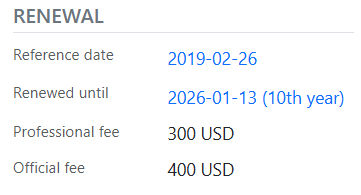
| Reference date | Start date for calculating renewals (e.g. filing or issue date) |
| Renewed until | Next renewal due date. May include year ordinal (e.g. 5th year) from the schedule. |
| Professional fee | Your fee. Editable if the matter type has no schedule; otherwise calculated from the schedule. |
| Official fee | Official renewal fee. Same rules as professional fee. |
Custom data
If the matter type defines custom fields, they appear under Custom data. Click a value (or "Add…") to edit:

Reminder section
When the matter type has a reminder schedule:
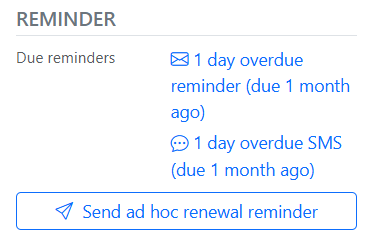
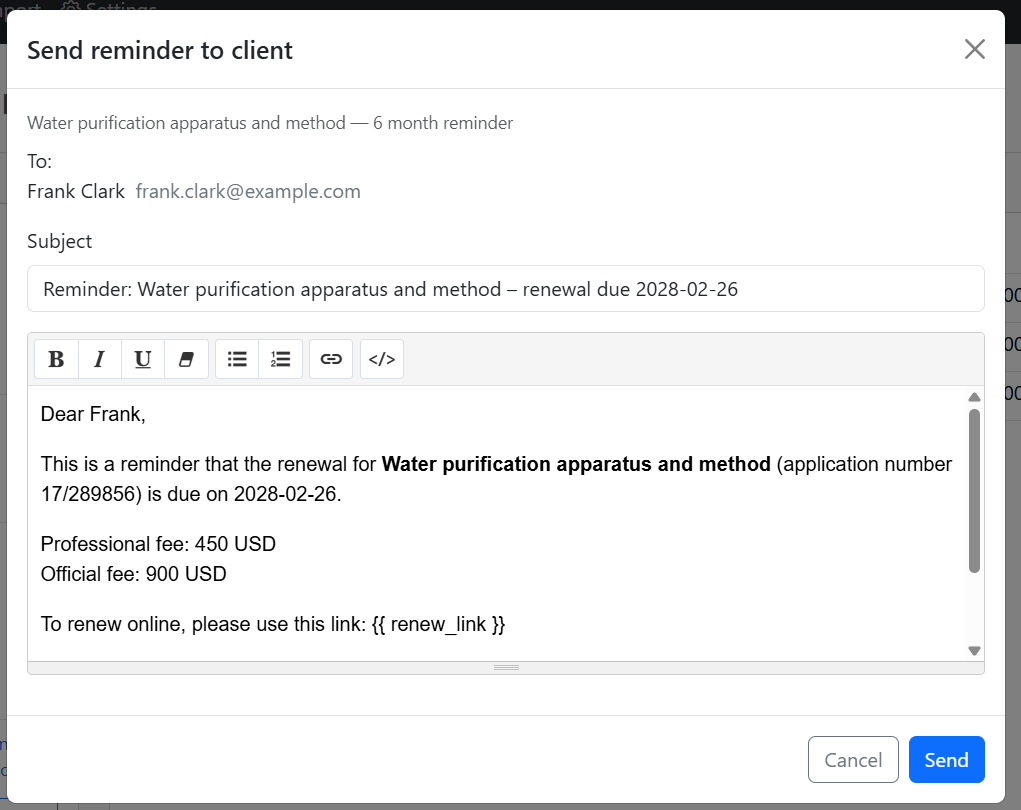
- Due reminders – Links for reminders that are past due (e.g. "6 month reminder (due 1 month ago)", "1 day overdue reminder"). Click to open the reminder modal and send.
- Send ad hoc renewal reminder – Button to send an on-demand reminder when no scheduled reminder is due.
Clicking a due reminder opens the Send reminder to client modal, where you can edit the recipient, subject, and body before sending:
Contacts & roles
The main card lists contacts linked to the matter with their roles (Applicant, Client, Payee, Attorney of record, Correspondent). The overview above shows the table. Use Add contact to assign a role to an existing contact or create a new one:
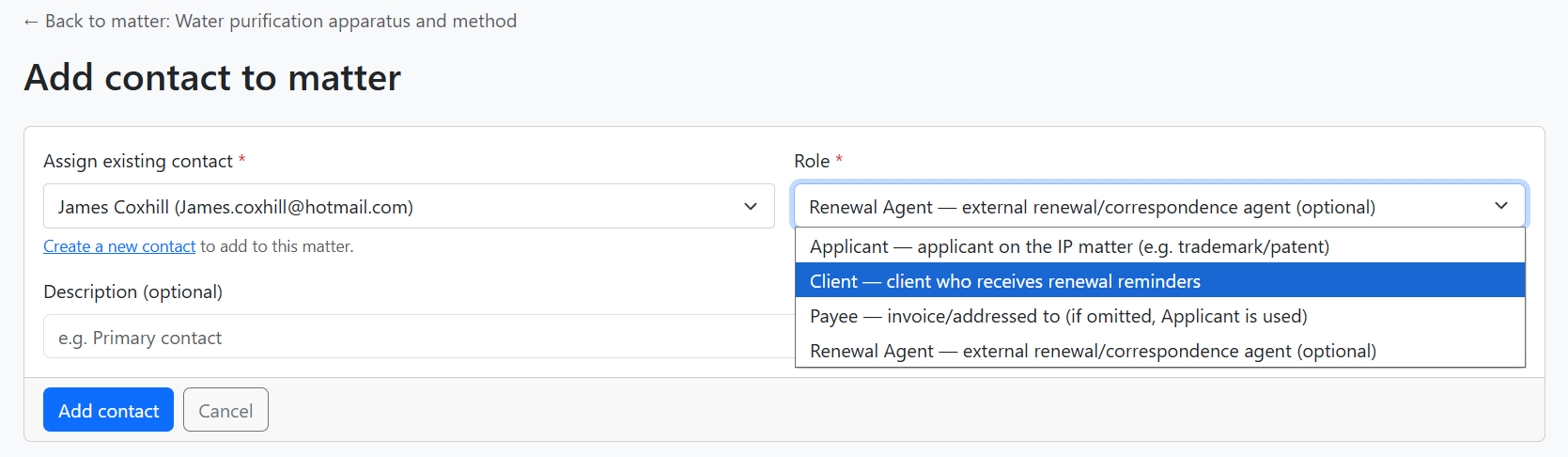
Assign an existing contact, optionally add a description (e.g. "Primary contact"), and choose a role (Applicant, Client, Payee, Renewal Agent, etc.). Click Create a new contact to add someone not yet in the system. See Contacts for managing contacts and roles.
Renewal Log
The Renewal Log tab lists all renewal and abandon actions (instructed, processed, or pending). A badge shows the number of pending actions.

| Column | Description |
|---|---|
| Type | Renew or Abandon |
| Status | Pending, Processed, or Cancelled |
| Instructed by | Contact who requested the action |
| Renewed on | Date the renewal was recorded (or abandoned on for abandons) |
| Renewed until | Next due date after renewal |
| Processed by | User or contact who recorded it |
| Notes | Optional notes |
| Receipts | Attached PDF receipts (e.g. Invoice INV-23188.pdf) |
Reminder Log
The Reminder Log tab shows reminder history – sent and failed reminders. Pending reminders appear in the Details card only.

| Column | Description |
|---|---|
| Status | Sent, Failed, Not sent, etc. Failed reminders show a Try again button. |
| Due | When the reminder was due |
| Sent at | When it was delivered (or attempted) |
| Template | Name of the reminder template (e.g. "1 day overdue reminder", "Ad hoc reminder") |
| Sent to | Recipient contact |
| Sent by | User or system that sent it |
| Notes | Failure message or additional notes |
Recording a renewal
When you click Renew, a modal opens to record the renewal:
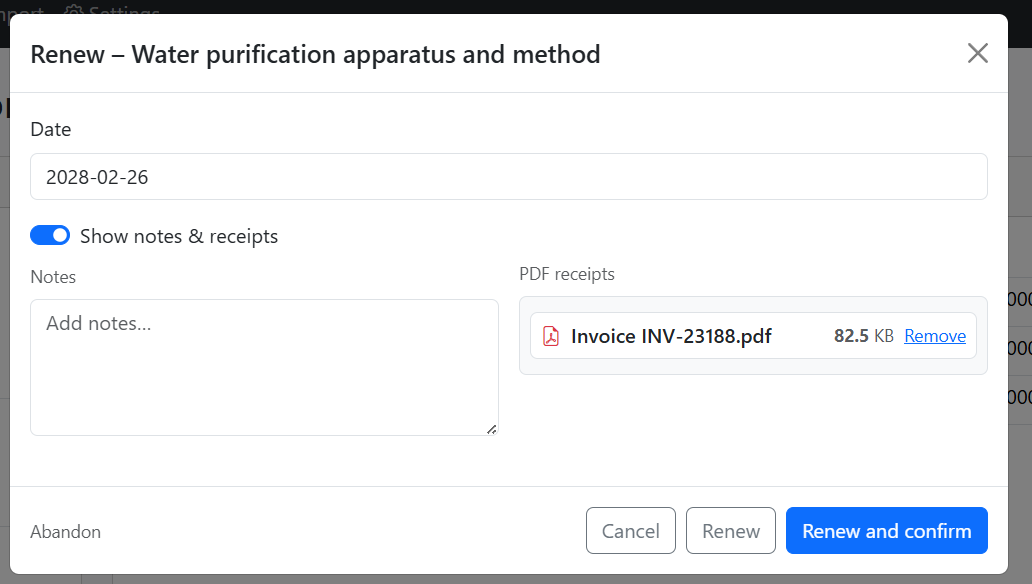
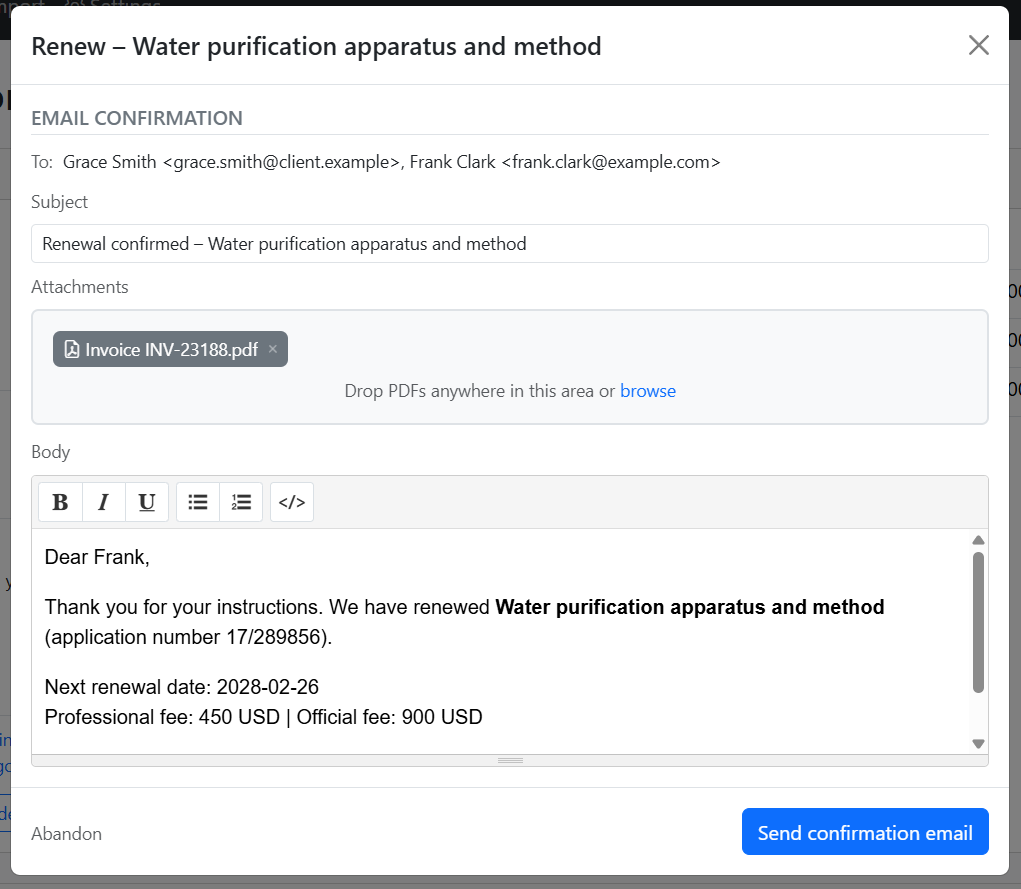
Set the renewal date, optionally add notes, and attach PDF receipts (e.g. invoice). Use Renew to save without sending an email, or Renew and confirm to save and send a confirmation email:
Abandoning a matter
When you turn the Abandon toggle on, a confirmation modal appears:
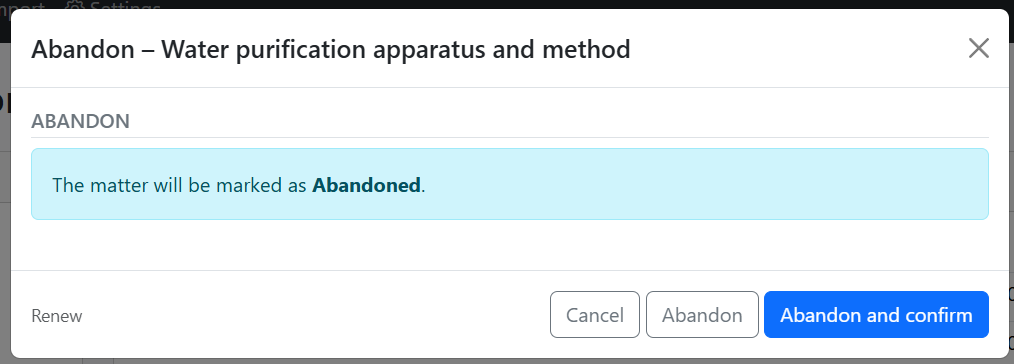
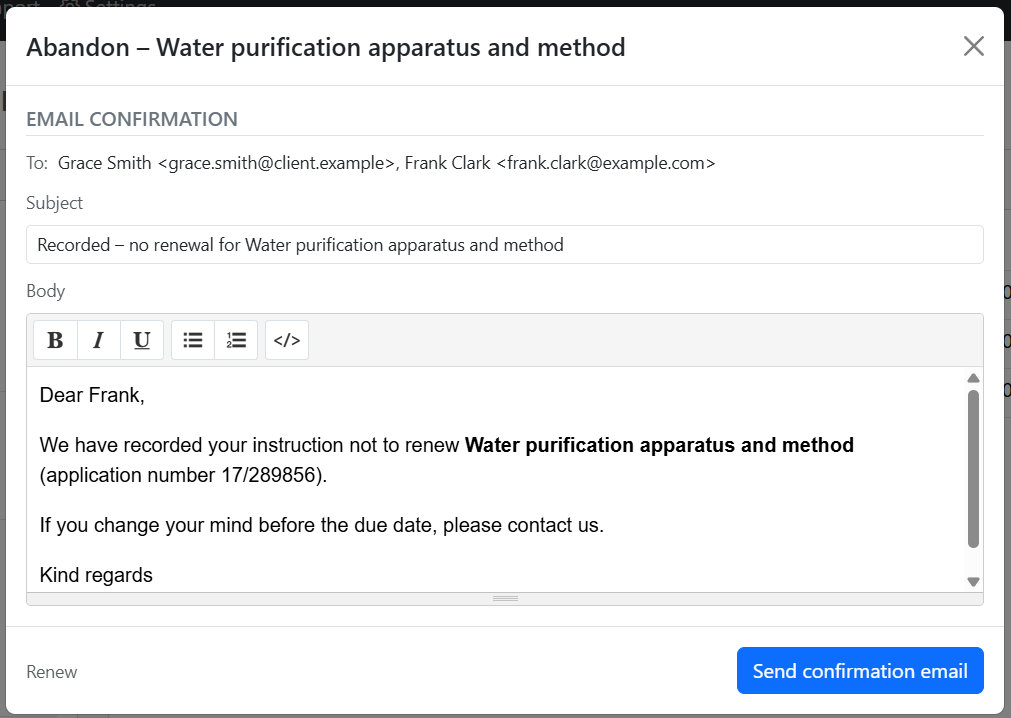
Abandon marks the matter as abandoned without sending an email. Abandon and confirm also sends a confirmation email to the client and applicant:
Editing fields inline
Click editable fields (name, Ref., application number, reference date, renewed until, professional fee, official fee) to open a modal:
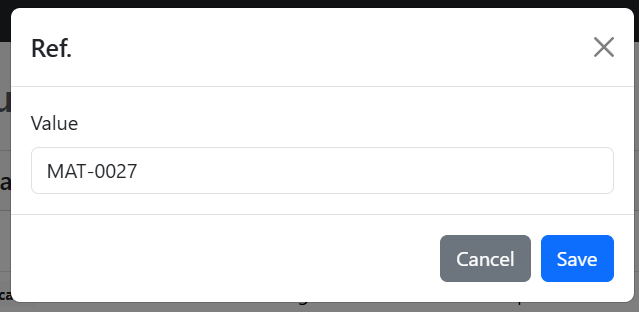
Save to update without leaving the page. Date changes trigger a refresh so fees and next renewal stay in sync.
Key fields (reference)
- Name – Matter title
- Application number – Official reference
- Client – Owner of the matter (via Contacts & roles)
- Applicant – IP holder (via Contacts & roles)
- Next renewal date – Renewed until
- Professional fee / Official fee – Can be auto-calculated from matter type schedule
Related
- Renewals – Dashboard and bulk actions
- Matter types – Configure types and schedules
- Contacts – Manage contacts and roles
- Import – Bulk import matters