Matter types
Matter types (e.g. Trademark, Patent) define how renewals and reminders work. Each type has a renewal schedule, reminder timing, email templates, and optionally custom fields.
Go to Settings and open a matter type from the dropdown, or navigate to the type’s renewal schedule, fee settings, reminder schedule, or email templates.

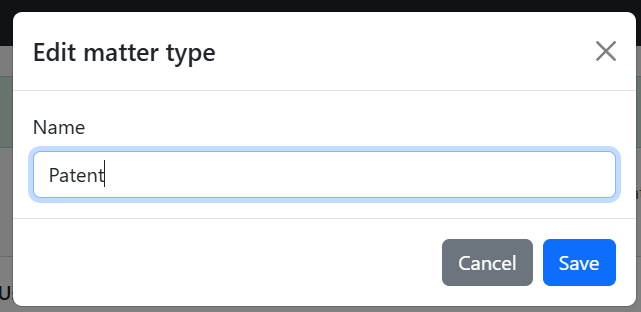
Click Edit to change the matter type name:
Renewal schedule
The renewal schedule defines when renewals fall due and what fees apply. Access it from the matter type’s sidebar or via Settings → matter type → Renewal schedule.
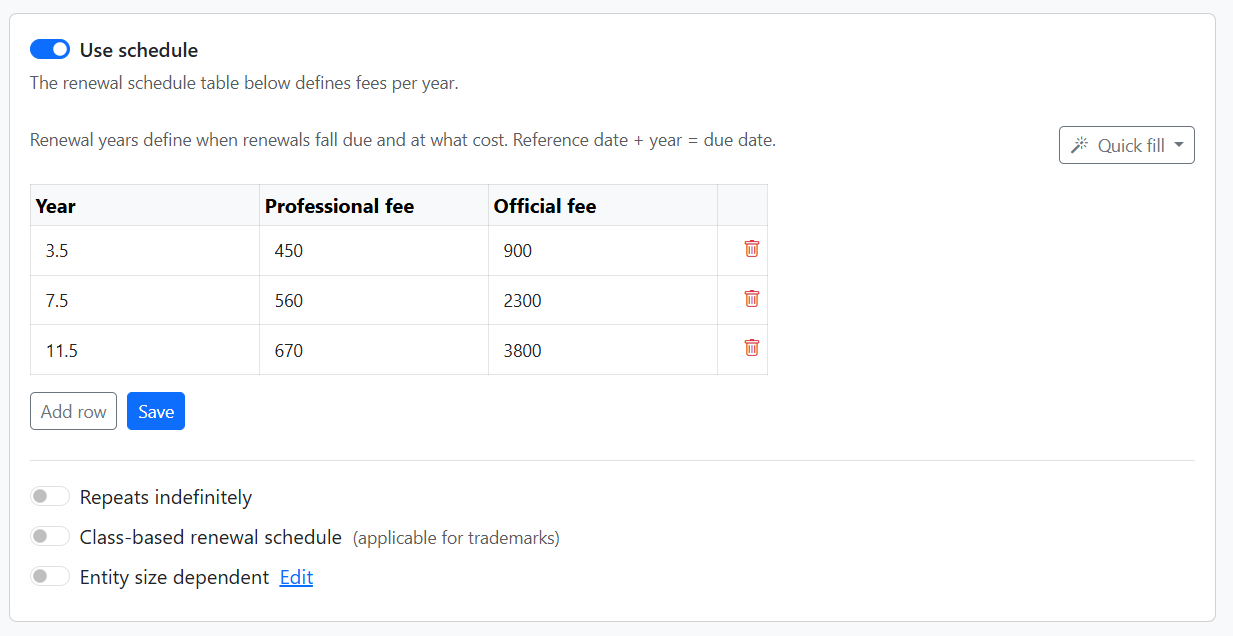
Use schedule
Turn Use schedule on to define fees in the table below. When off, professional and official fees are entered manually on each matter at renewal time.
How it works
- Renewal years define when renewals fall due and at what cost.
- Reference date + year = due date – e.g. reference date 2020-03-15 + 3.5 years = 2023-09-15.
- The reference date comes from the matter (typically filing or issue date; see Import).
Quick fill
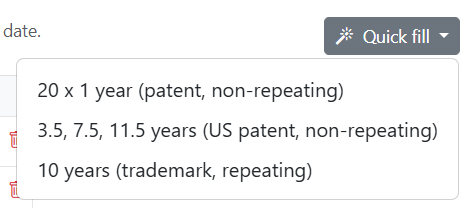
Use Quick fill to load a preset schedule. Options include:
| Preset | Description |
|---|---|
| 20 x 1 year (patent, non-repeating) | Annual renewals for 20 years (e.g. some jurisdictions). |
| 3.5, 7.5, 11.5 years (US patent, non-repeating) | USPTO maintenance fee intervals. Official fees match current small-entity rates (3.5: $900, 7.5: $2,300, 11.5: $3,800). Adjust professional fees as needed. |
| 10 years (trademark, repeating) | 10-year renewals that repeat indefinitely (typical for trademarks). |
Quick fill overwrites existing rows. Edit amounts after applying a preset if needed.
Schedule table
- Year – When the renewal is due (years after reference date). Use decimals for half-year points (e.g. 3.5, 7.5).
- Professional fee – Your firm’s fee.
- Official fee – Government/registry fee.
Use Add row for extra years. Delete a row with the trash icon. Click Save to store changes.
Repeats indefinitely
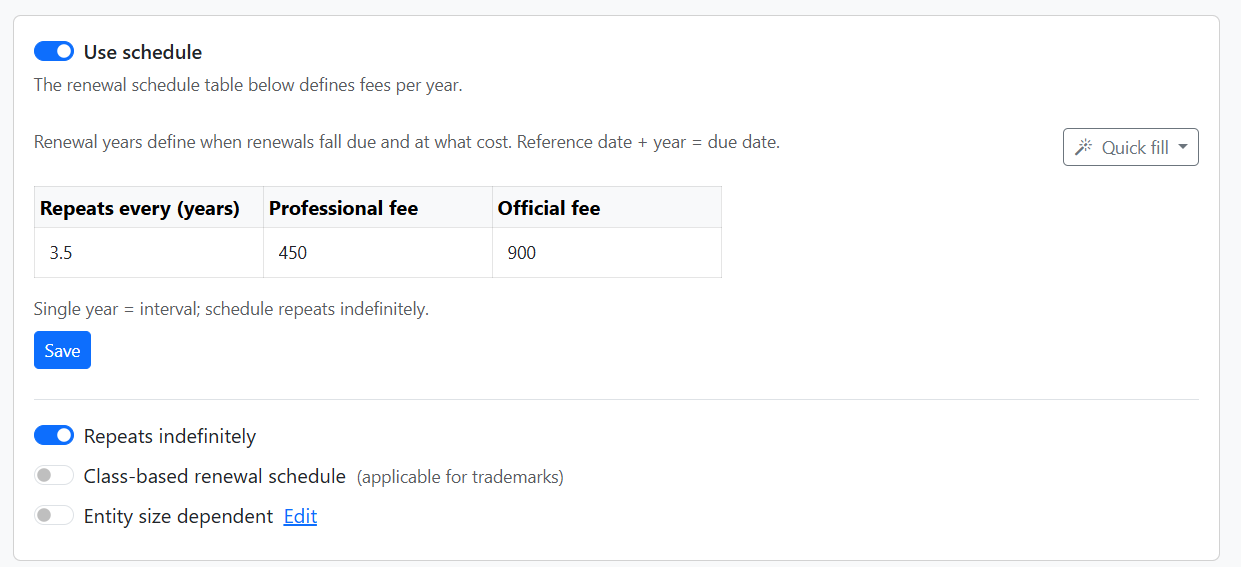
When Repeats indefinitely is on, the table shows Repeats every (years) instead of Year. A single row defines the interval (e.g. 10 years for trademarks). The schedule repeats after each renewal.
Entity size dependent
For patents (especially US), fees often differ by entity size (Large, Small, Micro). Turn Entity size dependent on to add tabs:
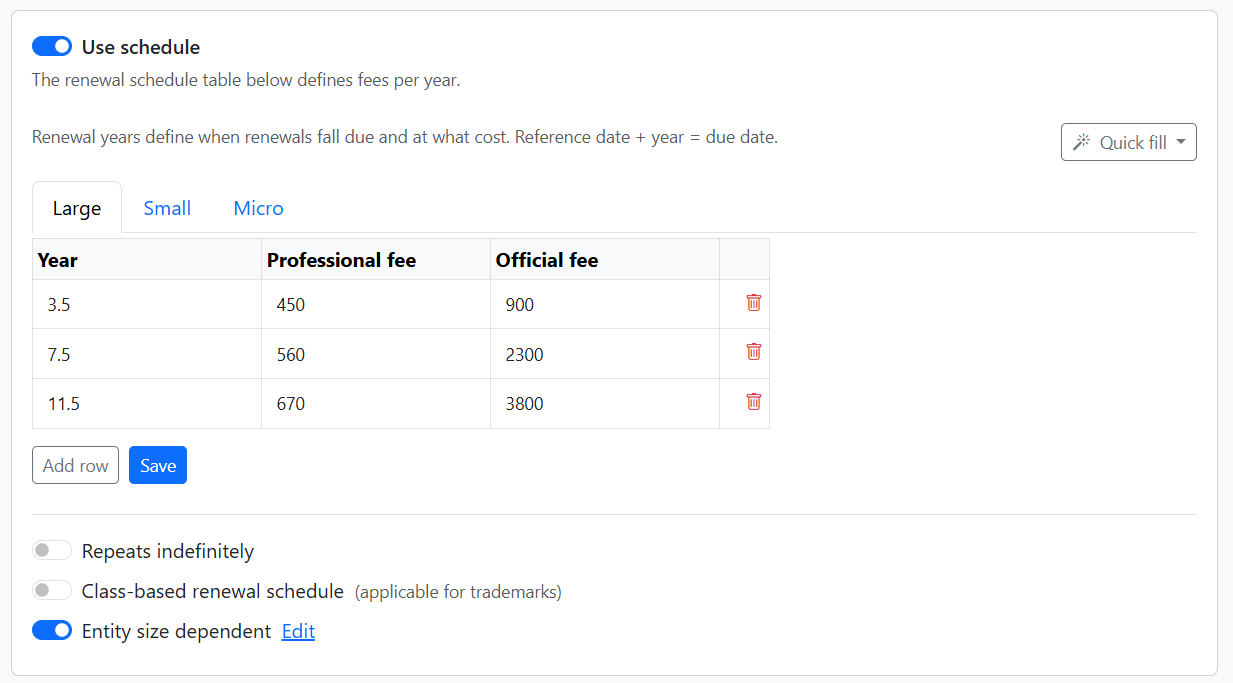
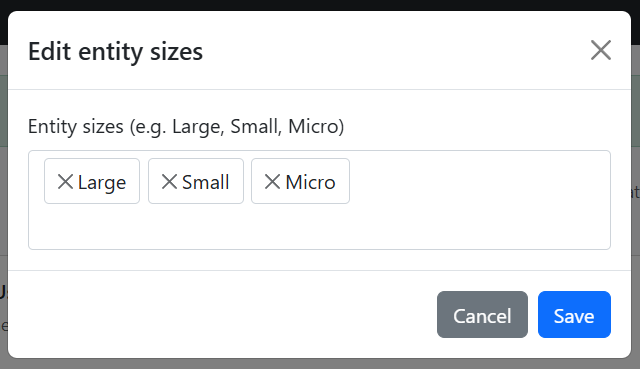
Each tab has its own fee table. Click Edit next to the toggle to change the entity size labels (default: Large, Small, Micro):
Class-based renewal schedule
For trademarks with multiple classes, turn Class-based renewal schedule on. The table gains columns for first class and each additional class fees:
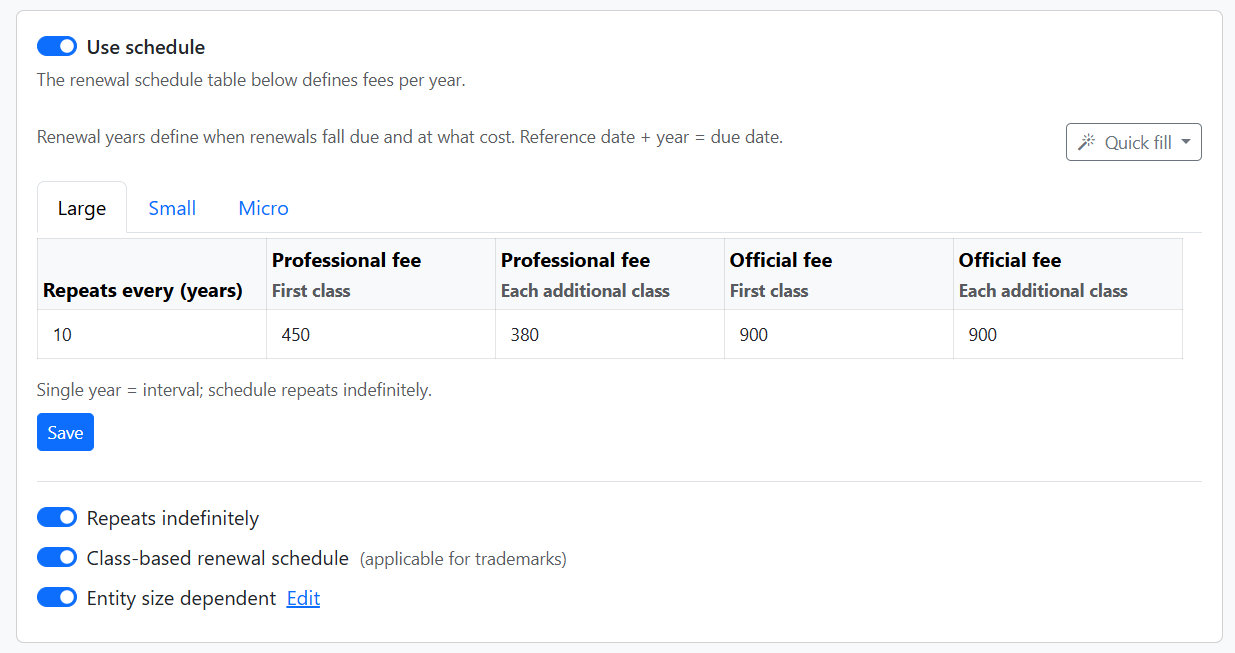
- Professional fee – First class / Each additional class
- Official fee – First class / Each additional class
Fee settings
Set the default currency and tax rate for professional and official fees. These apply whether or not a renewal schedule is used:
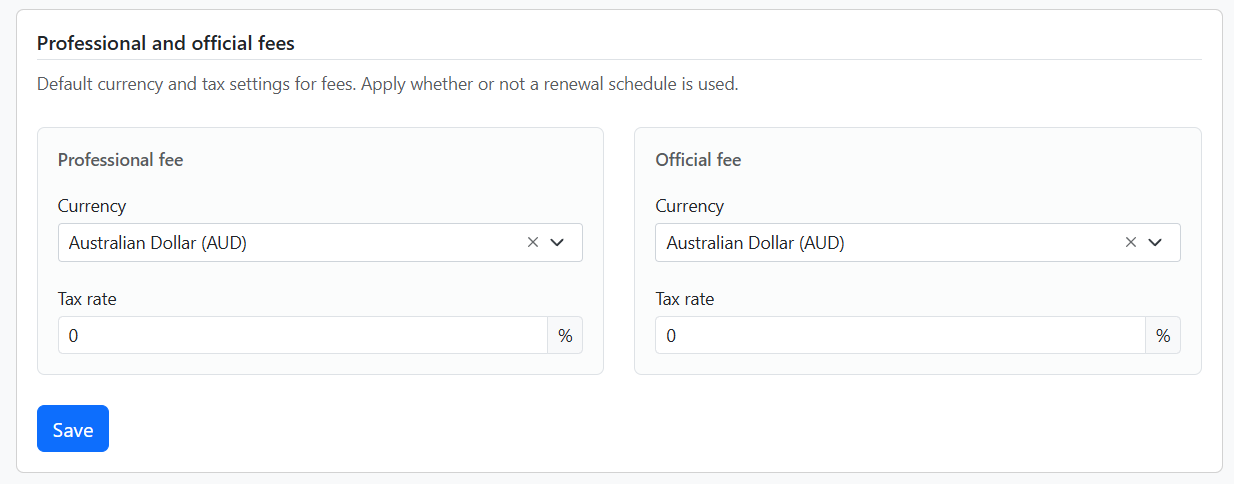
- Currency – For professional fees and official fees (e.g. Australian Dollar, USD)
- Tax rate – Percentage applied to fees (e.g. 0 for no tax, 10 for 10% GST)
Xero tracking (when Invoicing is connected)
When Settings → Invoicing is connected to Xero, fee settings include Xero tracking categories:
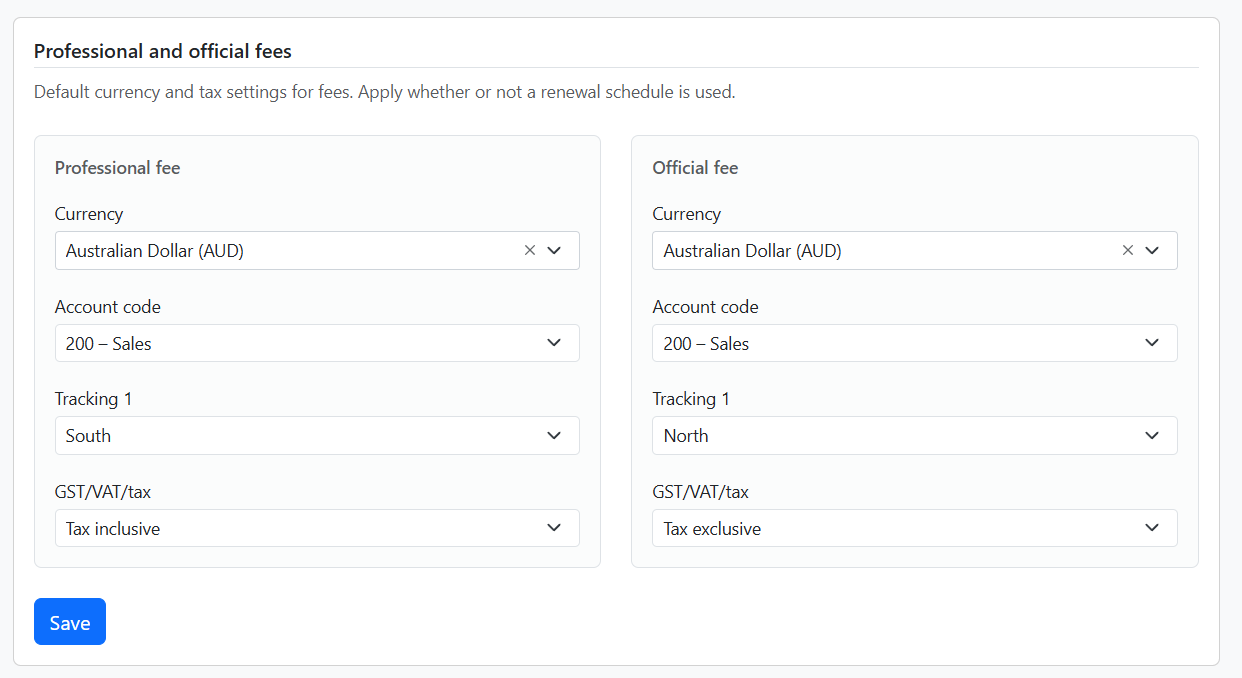
- Account code – Xero account (e.g. 200 - Sales)
- Tracking 1 – Xero tracking category (e.g. South, North)
- GST/VAT/tax – Tax inclusive or tax exclusive
Access via the matter type sidebar.
Custom data fields
Define custom text and date fields for matters of this type. Use them in reminder templates via placeholders like {{ datafield_country }}, and import via datafield_{name} and datefield_{name} columns.
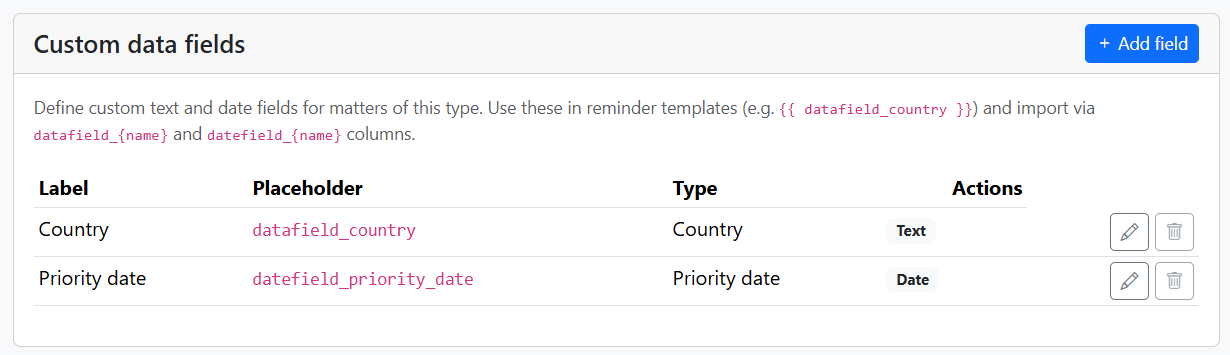
Each field has a Label (e.g. Country), a Placeholder (e.g. datafield_country), and a Type (Text or Date). Edit or delete with the row actions.
Add custom field
Click + Add field to create a new field:
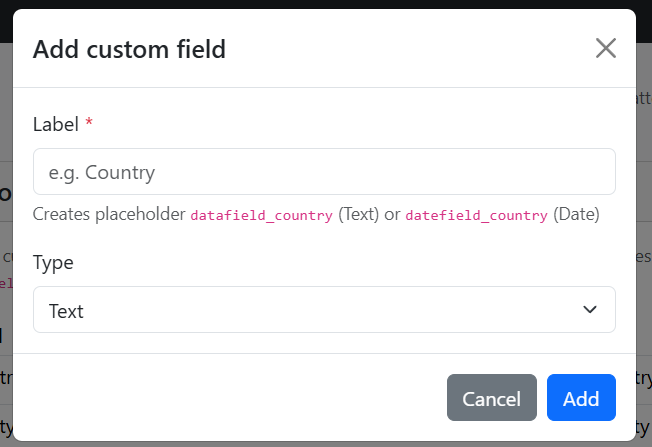
- Label – Human-readable name (e.g. Country). Creates
datafield_country(Text) ordatefield_country(Date). - Type – Text or Date. Dates use the organisation’s date format.
Reminder schedule
Reminder templates define when reminders are sent before (or after) renewal. Add multiple templates for different timing and channels (email, SMS).
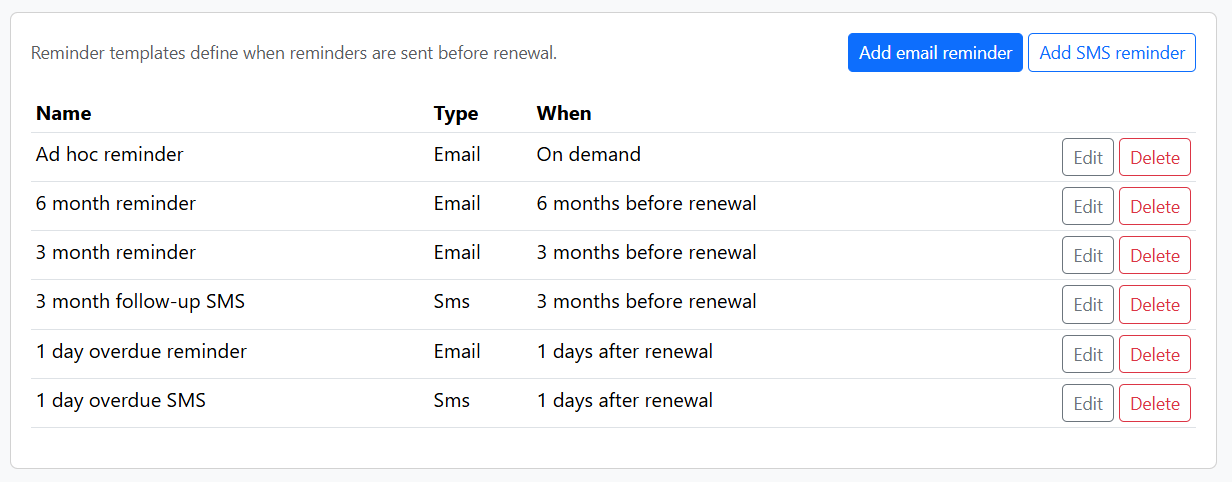
Each template has a Name, Type (Email or SMS), and When (e.g. 6 months before renewal, 1 day after renewal, or on demand for ad hoc). Use Edit or Delete on each row.
Quick fill
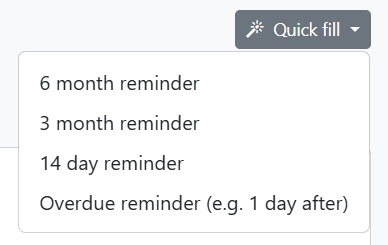
Use Quick fill to add common preset templates:
| Preset | Description |
|---|---|
| 6 month reminder | Email 6 months before renewal |
| 3 month reminder | Email 3 months before renewal |
| 14 day reminder | Email 14 days before renewal |
| Overdue reminder | Email/SMS 1 day after renewal (configurable) |
Add reminder template
Click Add email reminder or Add SMS reminder to create a new template:
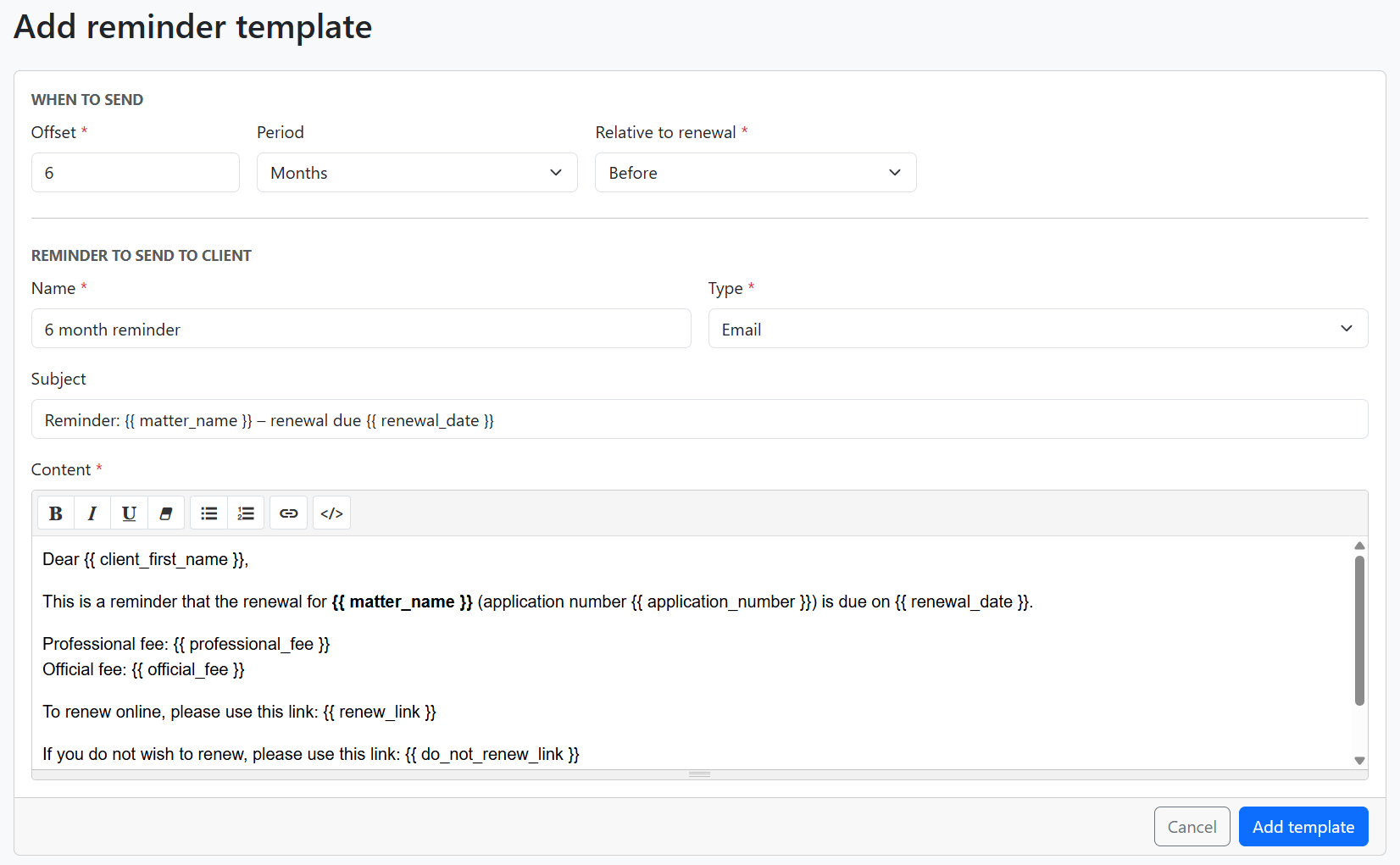
- When to send – Offset (number), Period (months/days), and relative to renewal (Before/After)
- Name – Template name (e.g. 6 month reminder)
- Type – Email or SMS
- Subject – Use placeholders like
{{ matter_name }},{{ renewal_date }} - Content – Email body or SMS text. Must include
{{ renew_link }}and{{ do_not_renew_link }}for renewal reminders so clients can act
See Reminders for the full placeholder reference.
Email templates
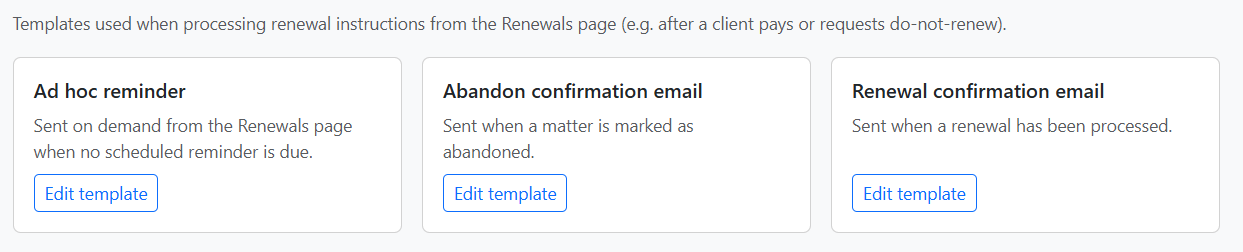
Templates used when processing renewal instructions from the Renewals page (after a client pays or requests do-not-renew):
| Template | When it is sent |
|---|---|
| Ad hoc reminder | On demand from the Renewals page when no scheduled reminder is due |
| Abandon confirmation email | When a matter is marked as abandoned |
| Renewal confirmation email | When a renewal has been processed |
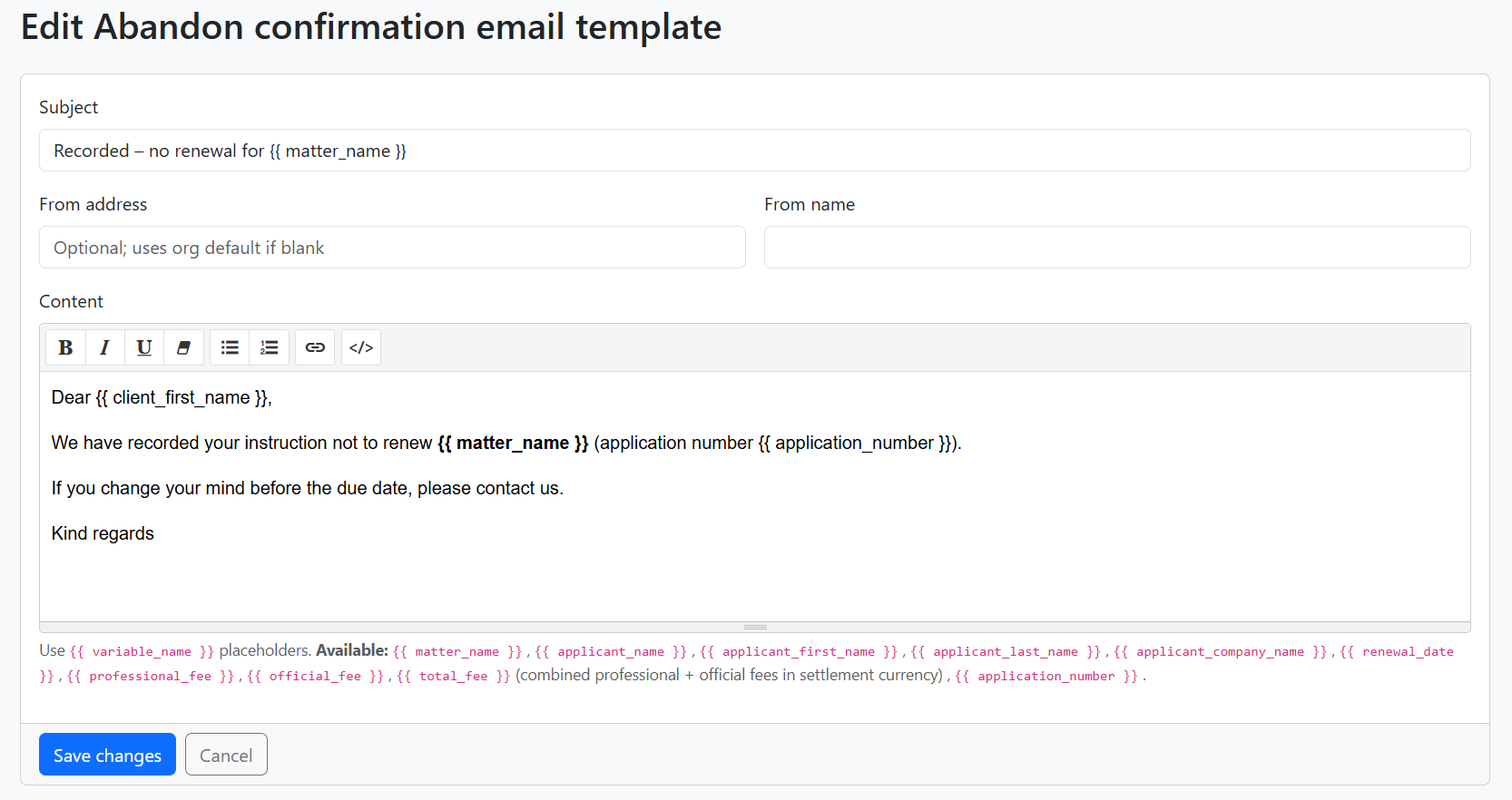
Click Edit template to change the subject, from address, and content.
Placeholders
Use {{ variable_name }} placeholders in subject and content. Available: {{ matter_name }}, {{ applicant_name }}, {{ applicant_first_name }}, {{ applicant_last_name }}, {{ applicant_company_name }}, {{ renewal_date }}, {{ professional_fee }}, {{ official_fee }}, {{ total_fee }}, {{ application_number }}, {{ client_first_name }}, and custom data fields like {{ datafield_country }}.
Related pages
- Renewals – Dashboard for matters and renewals
- Matters – Individual matter details
- Import – Bulk import with
reference_dateandmatter_type_name - Reminders – How reminders and templates work
- Settings → Organisation – Default currency