Import matters
Import matters in bulk from a CSV file. This page walks you through preparing your data, uploading, and managing imports.
Before you start
Before importing, ensure you have:
- Matter types – Each matter must reference an existing matter type. Add these under Settings or from the Renewals table.
- Column names – Your CSV header row must match the template exactly. Download the template first to avoid errors.
Upload CSV
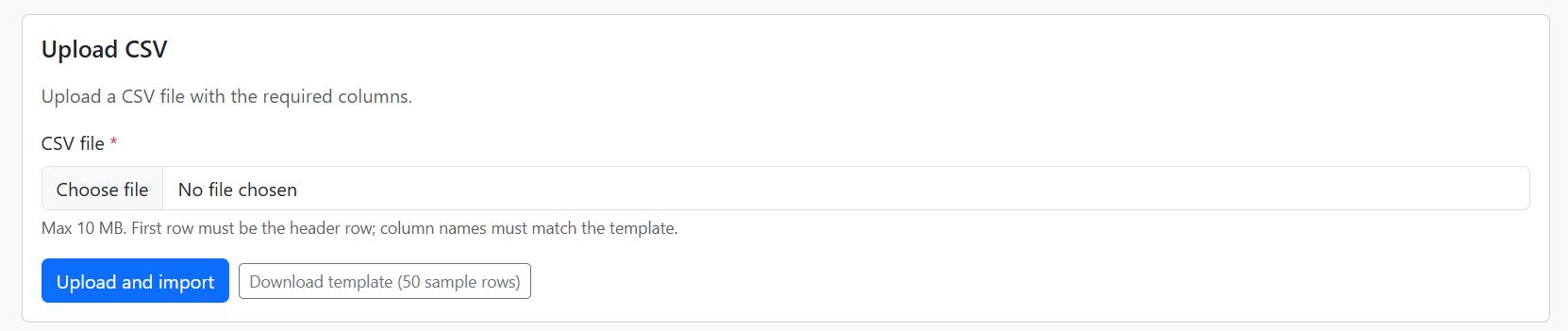
Go to Import in the main navigation. You’ll see the Upload CSV section:
Step 1: Download the template
Click Download template (50 sample rows) to get a CSV with:
- All required and optional column headers in the correct order
- 50 sample rows showing format and examples (trademarks, patents, designs, multiple clients, etc.)
Use this file as your starting point, or copy its header row into your own spreadsheet.
Step 2: Prepare your file
- Format: CSV or TXT, max 10 MB
- First row: Must be the header row; column names must match the template exactly
- Dates: Use
YYYY-MM-DD(e.g.2026-03-15). The importer also accepts: - Excel serial numbers (e.g.
45480for 3 Jun 2024) - Common formats such as
d/m/Y,d-m-Y(e.g.16/08/2021)
Step 3: Upload and import
- Click Choose file and select your CSV
- Click Upload and import
- You’ll be taken to the Import status page while the file is processed in the background
Import status
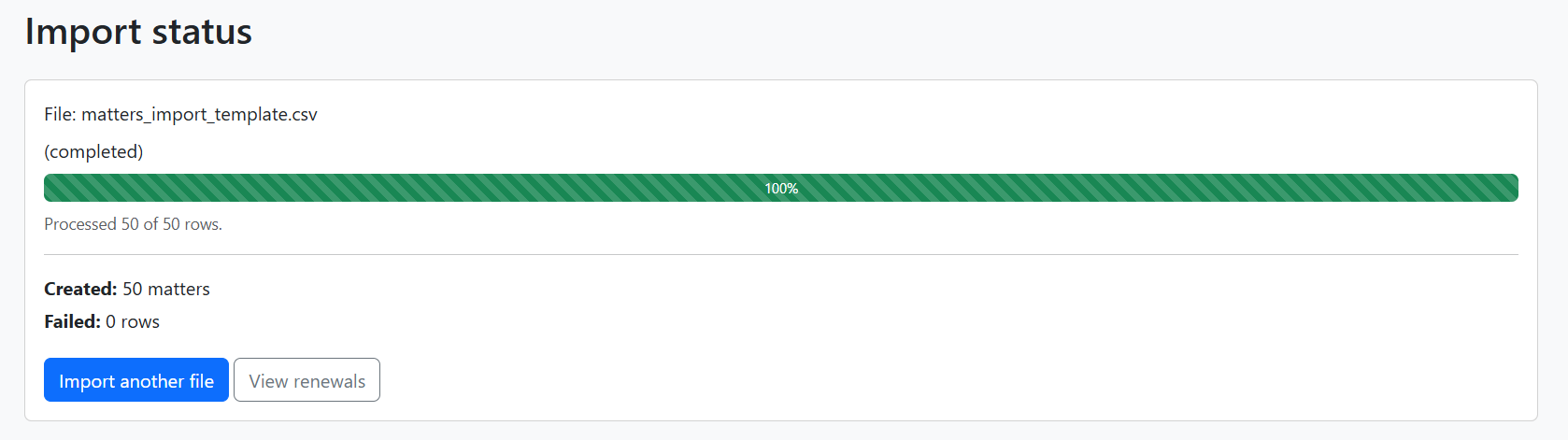
After uploading, the status page shows progress and results:
What you’ll see
| Field | Meaning |
|---|---|
| File | The name of the uploaded CSV |
| Stage | Current step (validating → importing) |
| Progress bar | Rows processed so far |
| Processed X of Y rows | How many data rows have been handled |
| Created | Number of matters successfully created or updated |
| Failed | Number of rows that produced errors |
When it’s finished
- Import another file – Returns to the Import page
- View renewals – Opens the Renewals table to see your imported matters
If rows fail
Failed rows are listed with messages such as “Row 12: Matter type 'XYZ' not found” or “Row 15: Invalid date format.” Fix those rows in your CSV and upload again. New rows will be created; existing matches will be updated (see Re-uploading and duplicates below).
Previous uploads
On the Import page, completed imports are listed:

- Matter count – How many matters were imported
- Date and time – When the import ran
- Delete – Available for 7 days after the import
Deleting an import
Within 7 days, click Delete to remove all matters from that import. You’ll be asked to confirm. This permanently removes those matters and related data (reminders, renewal actions, etc.); matter types and contacts are not affected.
After 7 days, delete is no longer available. To remove matters, edit or deactivate them individually from the Renewals or Matter pages.
CSV columns reference
Matter details (mandatory)
| Column | Description |
|---|---|
matter_reference_number |
Your internal reference, e.g. MAT-001 |
matter_name |
Usually the patent or trademark title |
matter_type_name |
Must match an existing matter type exactly, e.g. Trademark, Provisional Patent |
application_number |
Official application or registration number |
reference_date |
Date from which renewal is calculated (typically filing date, sometimes issue date). Format: YYYY-MM-DD |
next_renewal_date |
Next renewal date. Format: YYYY-MM-DD |
Matter details (optional)
| Column | Description |
|---|---|
agent_reference_number |
Agent’s reference number |
client_reference_number |
Client reference, e.g. CL-67890 |
num_classes |
Number of classes (for trademarks) |
entity_size |
Entity size for patents: Large, Small, or Micro |
Client (owner) — mandatory
Contact who receives renewal reminders. Must be an individual.
| Column | Description |
|---|---|
client_first_name |
First name |
client_last_name |
Last name |
client_email |
Email address |
client_mobile_phone |
E.g. +61 411 987 654 |
client_reference_number |
Optional reference |
Applicant — mandatory
The applicant of the IP right. Can be an individual or company.
| Column | Description |
|---|---|
applicant_first_name |
Leave blank if company |
applicant_last_name |
Leave blank if company |
applicant_company_name |
Leave blank if individual |
applicant_email |
Email address |
applicant_mobile_phone |
Phone number |
Agent — optional
Renewal agent (e.g. overseas agent).
| Column | Description |
|---|---|
agent_first_name, agent_last_name |
Name |
agent_email, agent_mobile_phone |
Contact details |
Payee — optional
Contact for invoices. Can be individual or company.
| Column | Description |
|---|---|
payee_first_name, payee_last_name |
Leave blank if company |
payee_company_name |
Leave blank if individual |
payee_email, payee_mobile_phone |
Contact details |
Custom data fields (optional)
Use datafield_ and datefield_ prefixes for custom values. First define the fields in Matter types → Custom fields.
| Pattern | Example | Format |
|---|---|---|
datafield_{name} |
datafield_country, datafield_registration_number |
Text |
datefield_{name} |
datefield_priority_date, datefield_expiry |
YYYY-MM-DD |
Re-uploading and duplicates
How duplicates are detected
A matter is a duplicate if it has the same matter_reference_number or application_number as an existing matter in your organisation.
What happens on re-upload
- Duplicate found → The existing matter is updated with the new CSV data (including contacts).
- No match → A new matter is created.
Use this to correct data by re-uploading a CSV with the same reference or application numbers.
Multiple contacts per role
To add more than one contact for a role (e.g. multiple clients), use the pipe character (|) to separate values.
Example – three clients:
client_first_name   = Jane|Peter|John
client_last_name    = Smith|Wilson|Clark
client_email        = jane@a.com|peter@b.com|john@c.com
client_mobile_phone = +61 411 001 001|+61 411 002 002|+61 411 003 003
All pipe-separated fields for that role must have the same number of values, or the row will fail validation.
Column order
Column order does not matter, but header names must match the template exactly (including spelling and underscores). Download the template and copy its header row if unsure.
Related pages
- Matters – View and edit individual matters
- Matter types – Configure types before importing
- Contacts – Manage client and applicant contacts
- Renewals – Main dashboard for imported matters
- Getting started – Initial setup guide