Client renewal pages
When clients click links in reminder emails, they see renewal action pages. This guide documents the Pay and renew flow and the Do not renew flow from the client's perspective.
Pay and renew
1. Renewal summary
The first screen shows the matter and fee breakdown before payment:
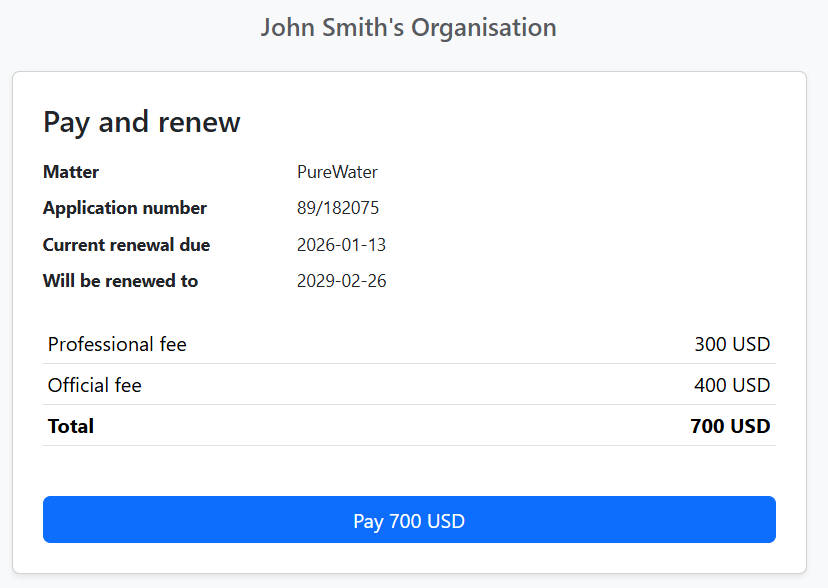
- Matter – Matter name (e.g. PureWater)
- Application number – Official reference
- Current renewal due – Existing due date
- Will be renewed to – New due date after payment
- Professional fee and Official fee – Itemised costs
- Total – Amount due
Click Pay [amount] to proceed to checkout.
2. Checkout
The checkout form collects payment details:
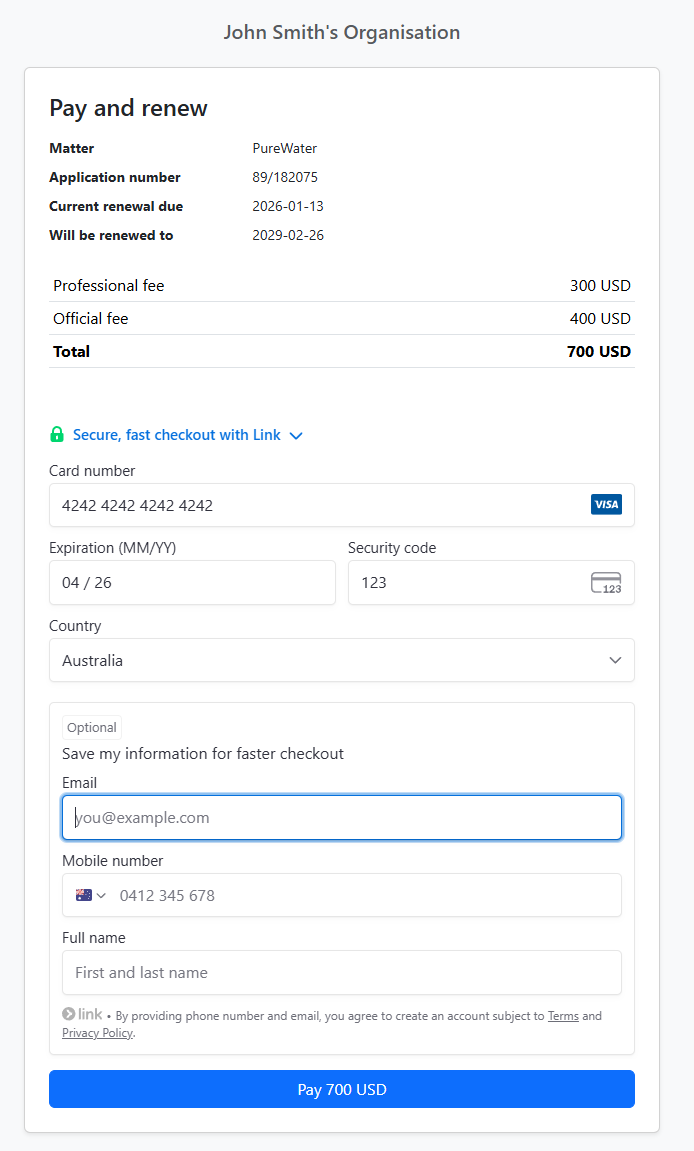
- Card number – Visa, Mastercard, etc.
- Expiration and Security code – Standard card fields
- Country – For billing
- Optional: Save my information for faster checkout – Link account. Also collects Email, Mobile number, Full name.
Secure checkout uses Stripe. Click Pay [amount] to submit payment.
3. Payment confirmed
After successful payment:
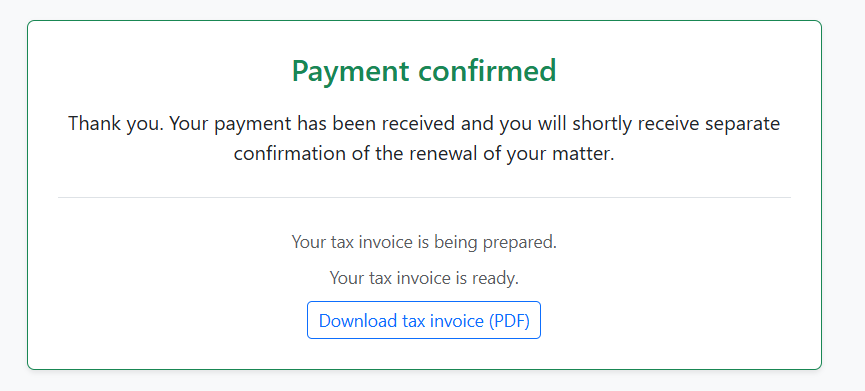
- A confirmation message advises that a separate renewal confirmation will be sent.
- Your tax invoice is ready – Download via Download tax invoice (PDF).
4. Tax invoice
The tax invoice PDF includes:
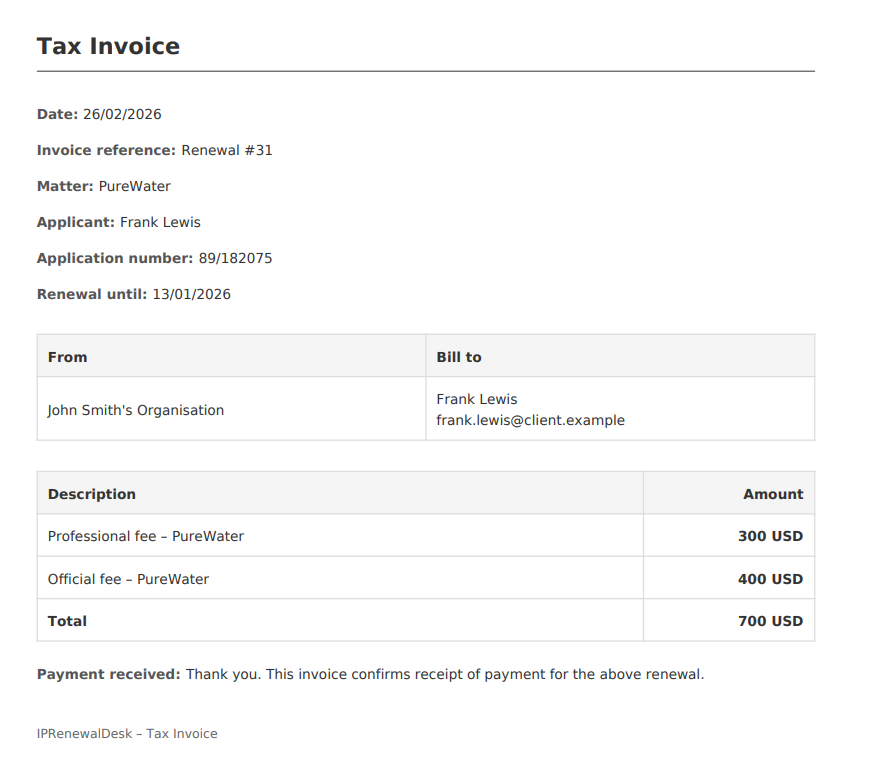
- Date, Invoice reference (e.g. Renewal #31)
- Matter, Applicant, Application number, Renewal until
- From – Your organisation
- Bill to – Client/contact
- Line items – Professional fee and Official fee
- Total
- Payment received – Confirmation that payment was received
Do not renew
When a client chooses not to renew, they must verify their identity via email.
1. Send verification code
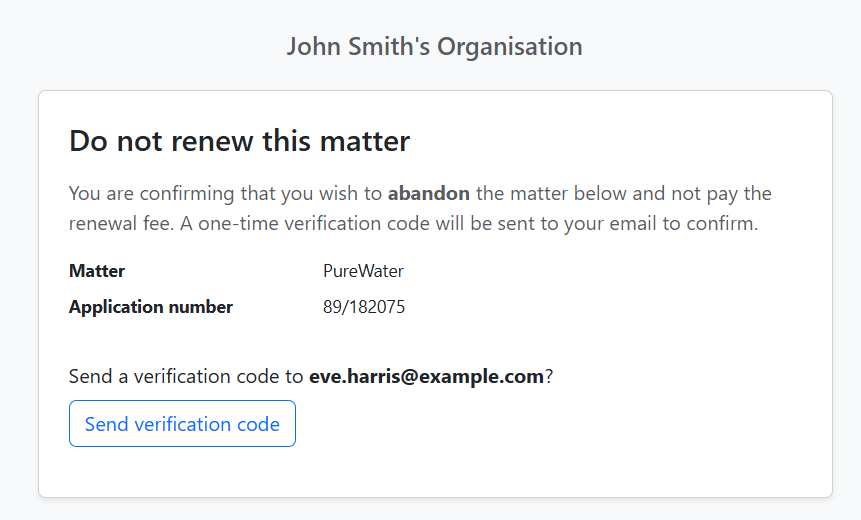
- The modal explains they are abandoning the matter and will not pay the renewal fee.
- Matter and Application number are shown.
- A one-time verification code will be sent to their email.
- Click Send verification code to receive the code at the displayed email address.
2. Enter verification code
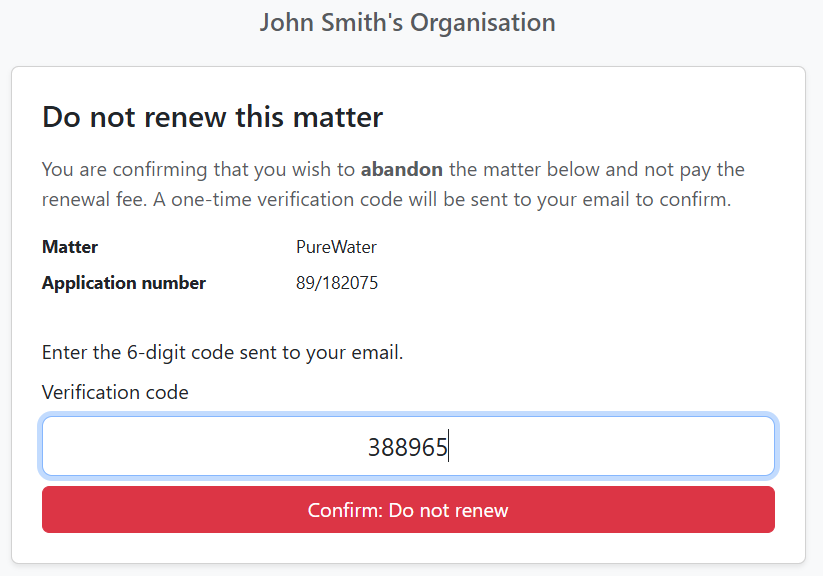
- Enter the 6-digit code sent to the email.
- Click Confirm: Do not renew to complete the request.
3. Request recorded
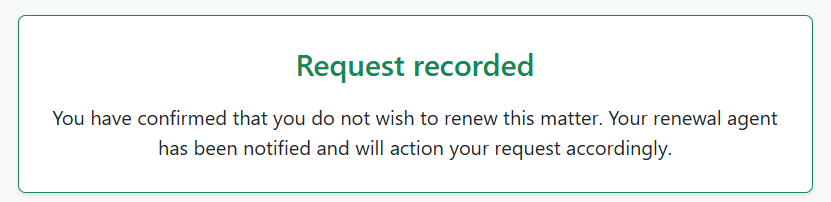
- Request recorded – The abandonment has been confirmed.
- The client’s renewal agent has been notified and will action the request accordingly.
Related
- Renewals – Renew and abandon from the Renewals dashboard
- Settings → Payments – Stripe configuration for online payments
- Settings → Invoicing – Invoice generation